
How to send emails to Applicants
The Cast It Reach Platform allows users to send email communications directly to Applicants in either of the following ways:
• Sending bulk email messages to many Applicants
• Sending an individual email message to a single Applicant
The steps between the two options are similar.
Before you start, you should create a new email template within the Communications Tab. For instructions on how to do that, click here.
Sending bulk email messages to Applicants
First you will need to decide who you need to send the email to. Use the existing filters in the Admin to define your list - for example all Applicants at a certain Stage.
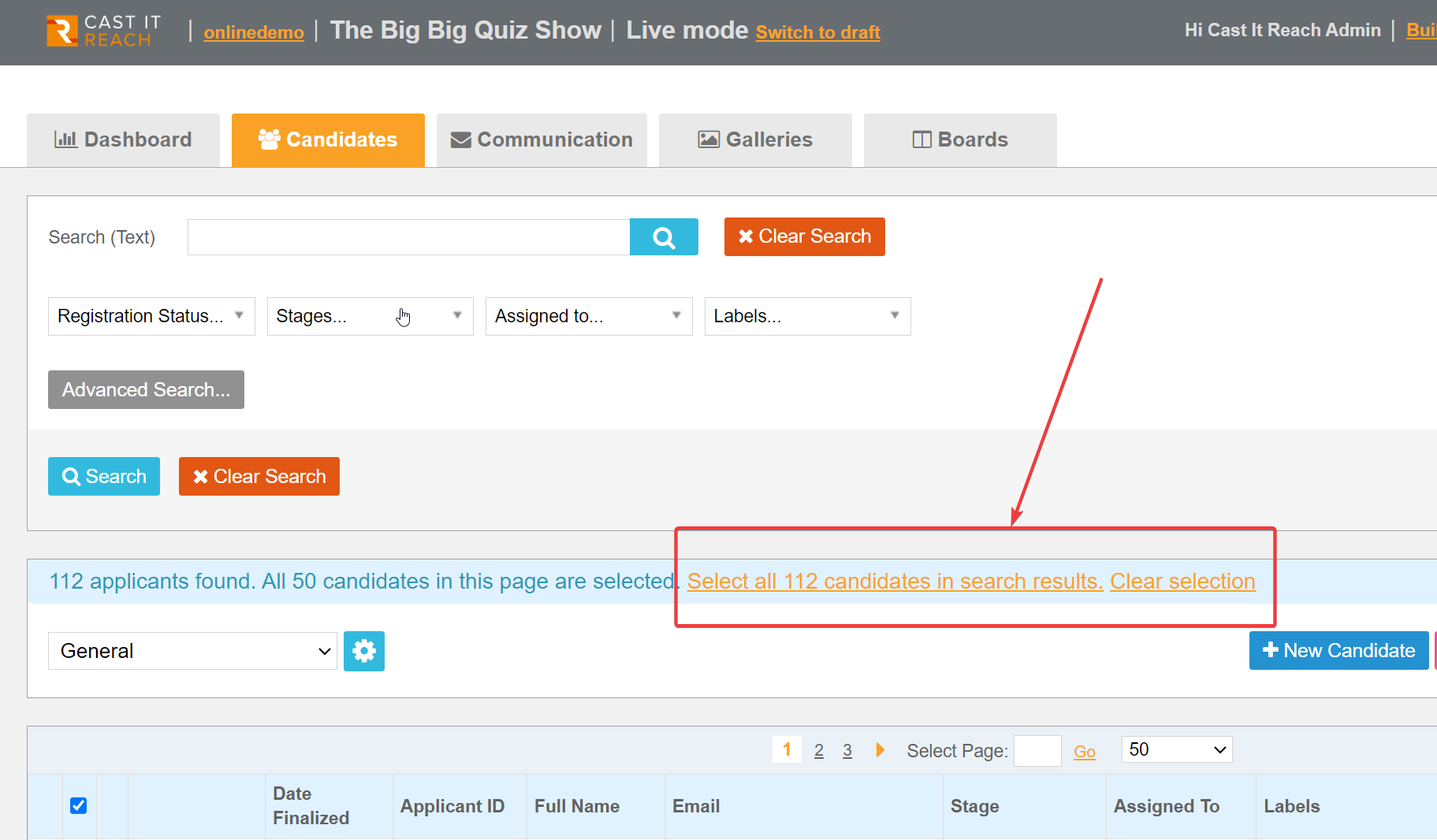
Once you have created your list, you must select the applicants using the Checkbox at the top of the Applicant List. Note: if the number of candidates is more than 50 (candidates per search results page), you may see this warning – make sure to select all candidates in search results.
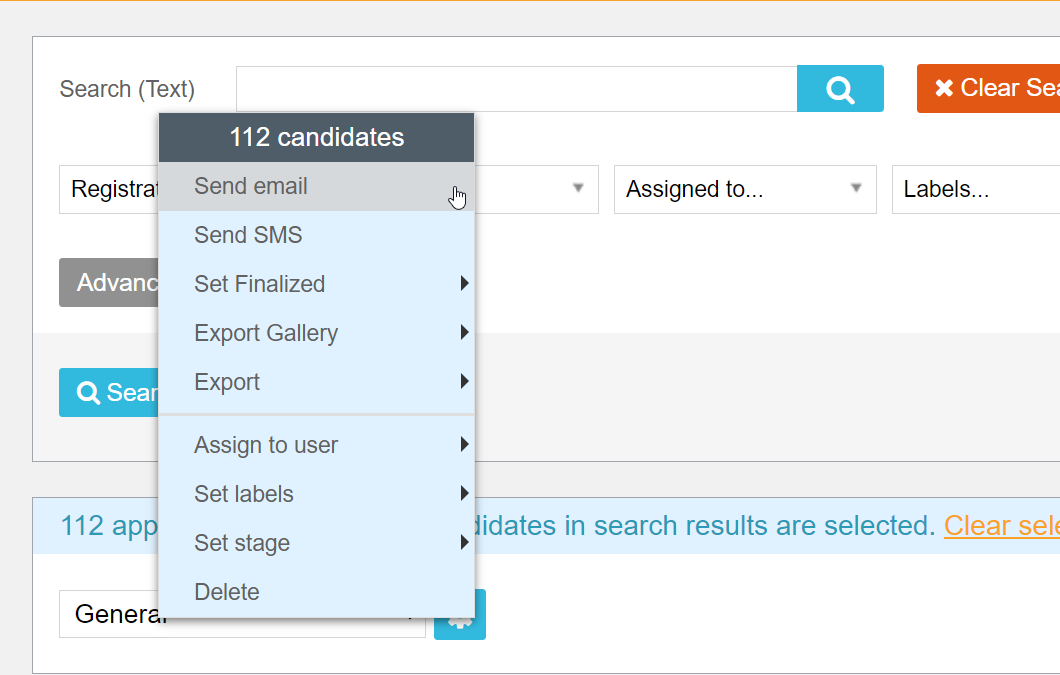
Click on the
icon above the Applicant List and choose the option 'Send Email'.
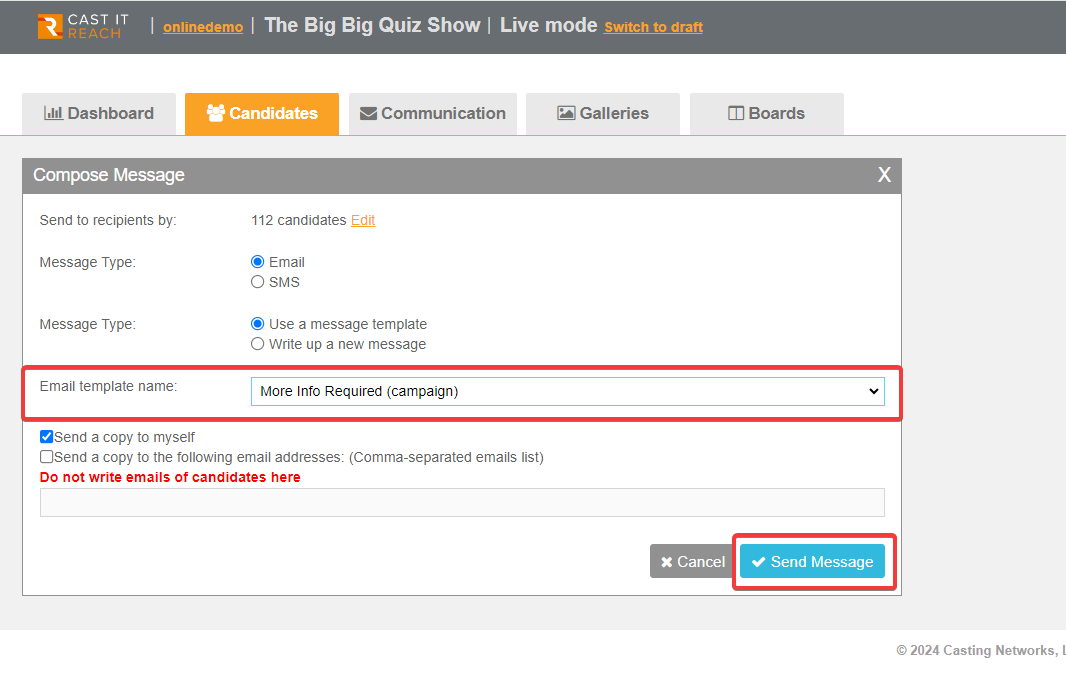
Select your Email Template from the list of available templates. Note - *ALL* email templates (for Campaign and Account) will be visible here - so good naming convention of your template is helpful. For example, use the date of creation as part of the name.
Once selected, if you want to send a copy of the email to yourself, check the box. You can also send to other Users - simply add their emails in the box provided. Note: Do NOT use this to add Applicant email addresses.
Click Send Email to send your mail, then confirm your wish to send.
When you send a message via Cast It Reach, it is added to a queue. If there are a lot of emails being sent across the platform, it may take a little longer than usual for your emails to send and be delivered.
Once your email has been sent, it will appear in the Messages Sent list in the Communications Tab:
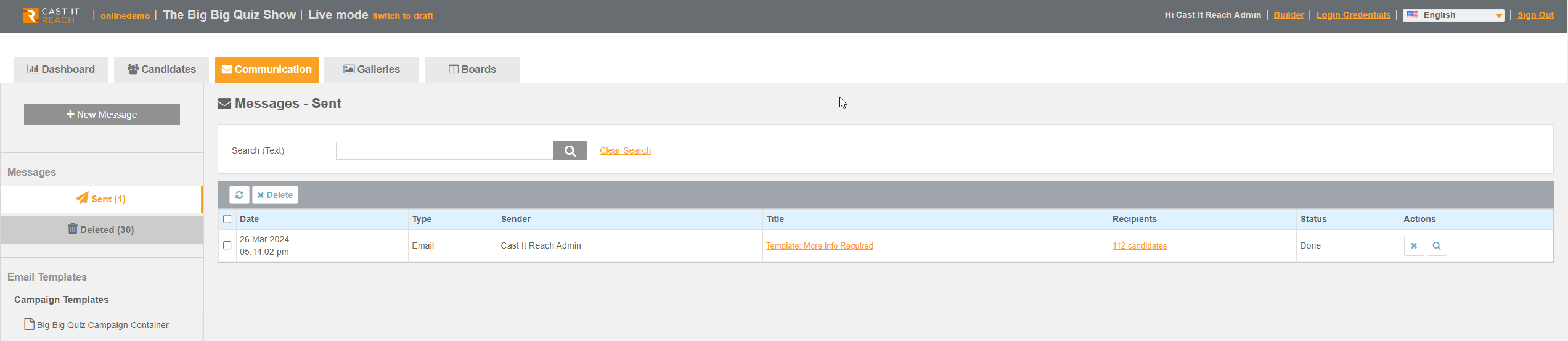
This will include details on the date and time of the email, the User who sent it, the email template used, and the applicants it was sent to.
If you have sent and email and it does not appear to have been delivered after a few hours, please contact support@castitreach.com for assistance.
Sending email messages to individual Applicants
To send an email to an individual applicant, simply follow the process above, but either:
Select an individual applicant from the list or;
Click the
icon to the right hand side of the Applicant's details in the Applicant List.
Then, follow the steps above to send your template.