How do I set up MFA?
What is MFA?
MFA stands for Multi-Factor Authentication. It is a security mechanism that requires users to provide two or more verification factors to gain access to the Cast It Reach platform.
Rather than just asking for a username and password, MFA requires additional credentials, such as a code from the user's smartphone, making it harder for potential intruders to gain access and steal personal data or identity.
Supported Authenticators:
Google Authenticator (anchor to section)
Okta Verify (anchor to section)
Microsoft Authenticator (anchor to section)
Applying MFA to User Profiles:
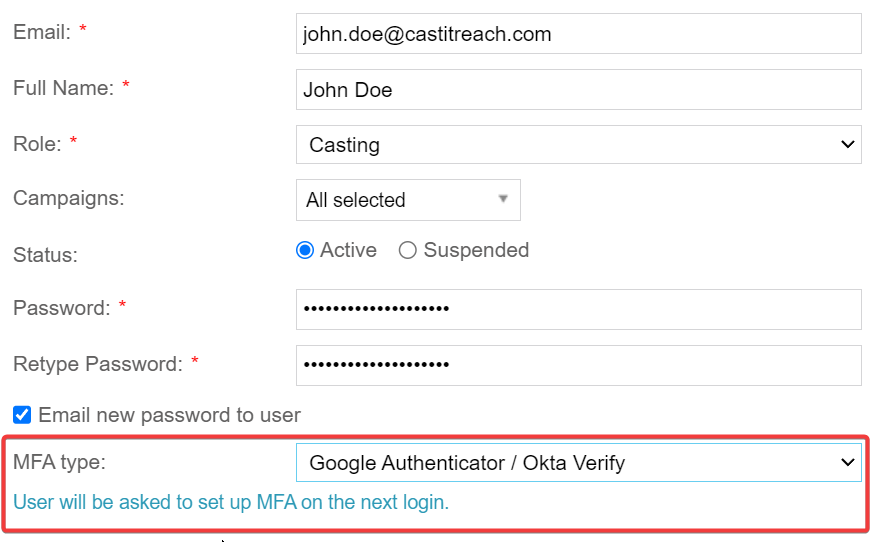
MFA can be applied to new or existing Users by selecting the “MFA type” option at the bottom of the menu. Note: MFA may need to be activated on your Account - if you do not see this option, please contact the Customer Success Team on support@castitreach.com
Google Authenticator (Phone App; Chrome Extension)
Users can Download the “Google Authenticator” app to their mobile device from the Apple Store (iOS Devices); Google Play Store (Android)
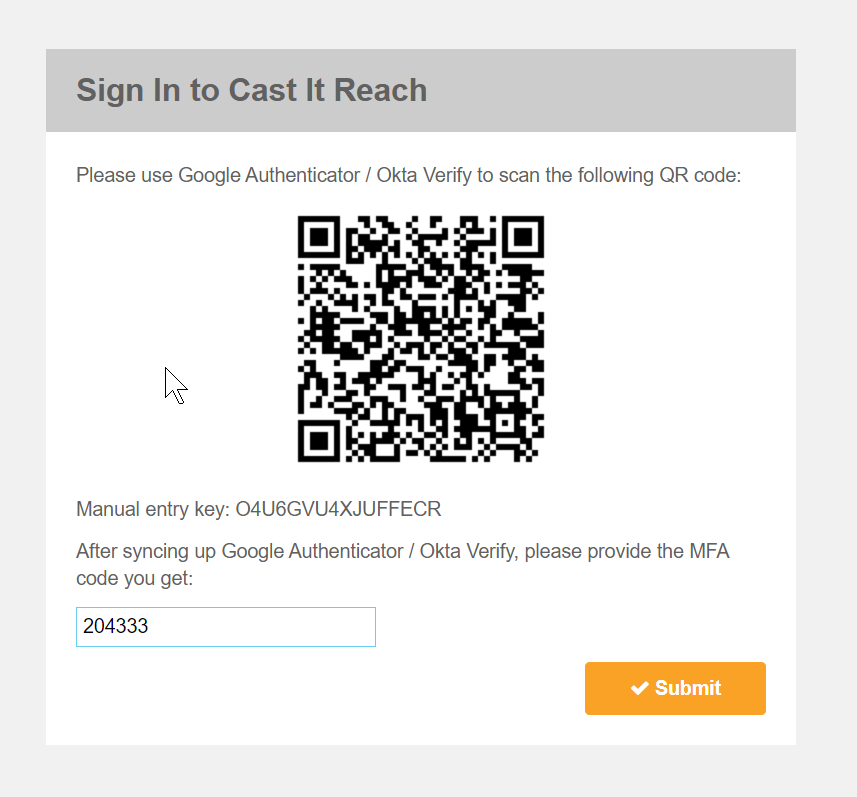
The first time a User signs in with MFA enabled, they will need to scan a QR code using the Google Authenticator app and then enter the generated code displayed.
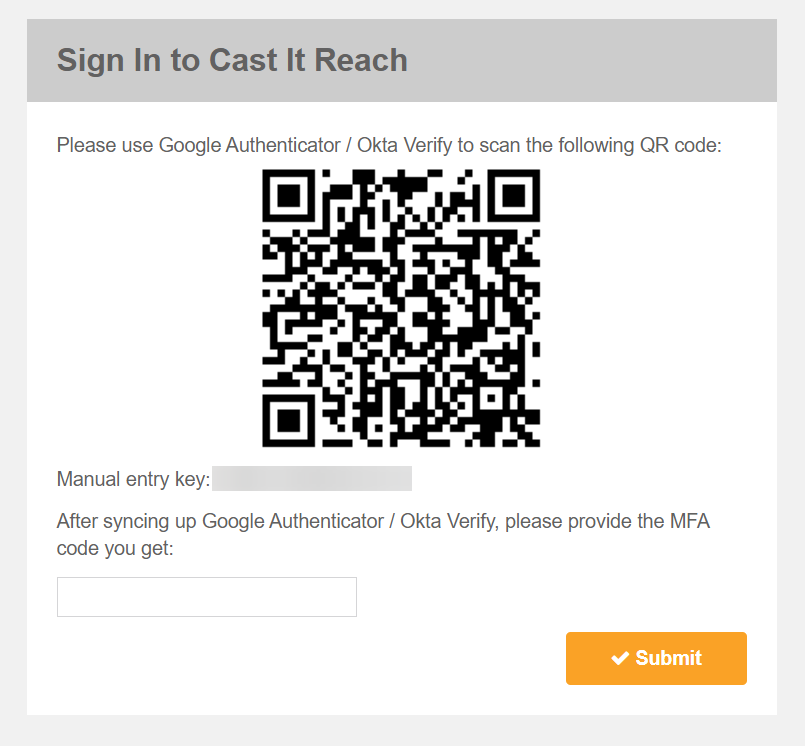
If the user is unable to scan the barcode, they can click ‘Enter a provided key’. The user can enter their email address under ‘Account Name’ and the 16-character manual entry key within the ‘Your key’ field.
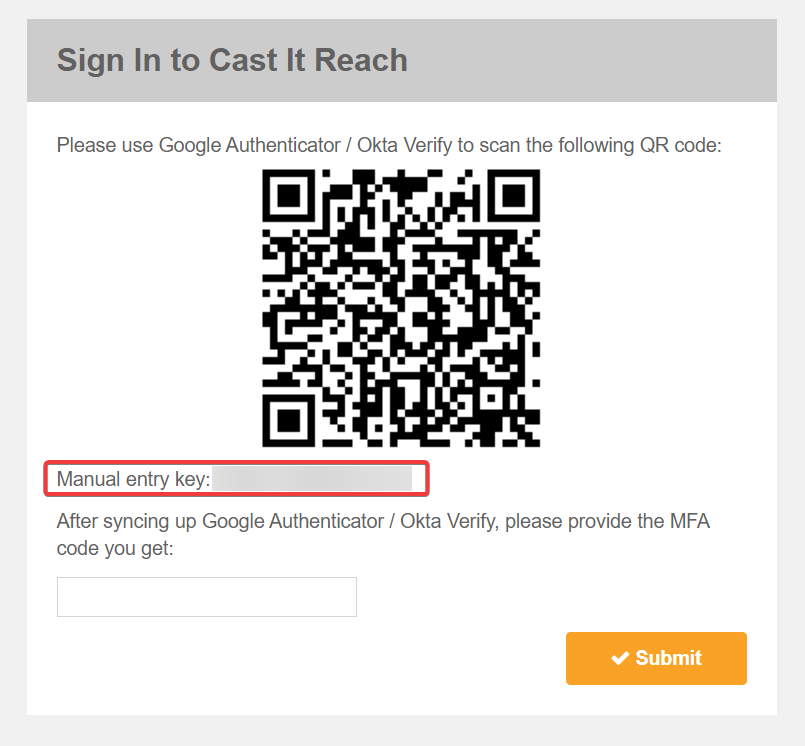
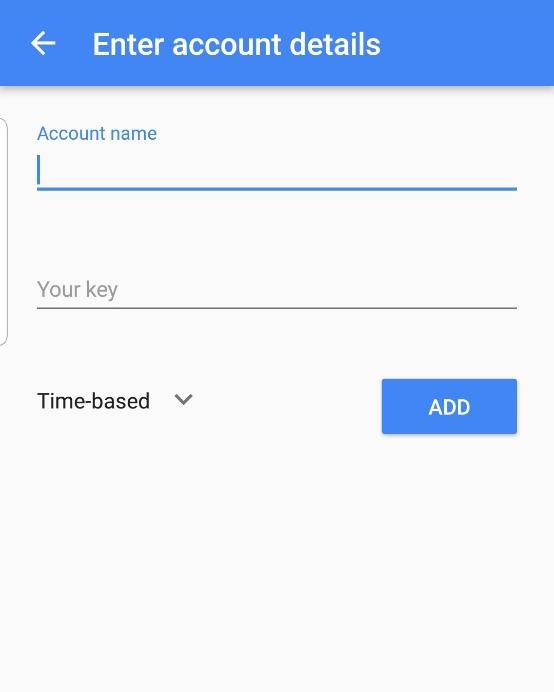
After scanning the QR code or manually entering the Entry Key, the user will see a 6-digit code displayed in the app. This code will refresh every 30 seconds.
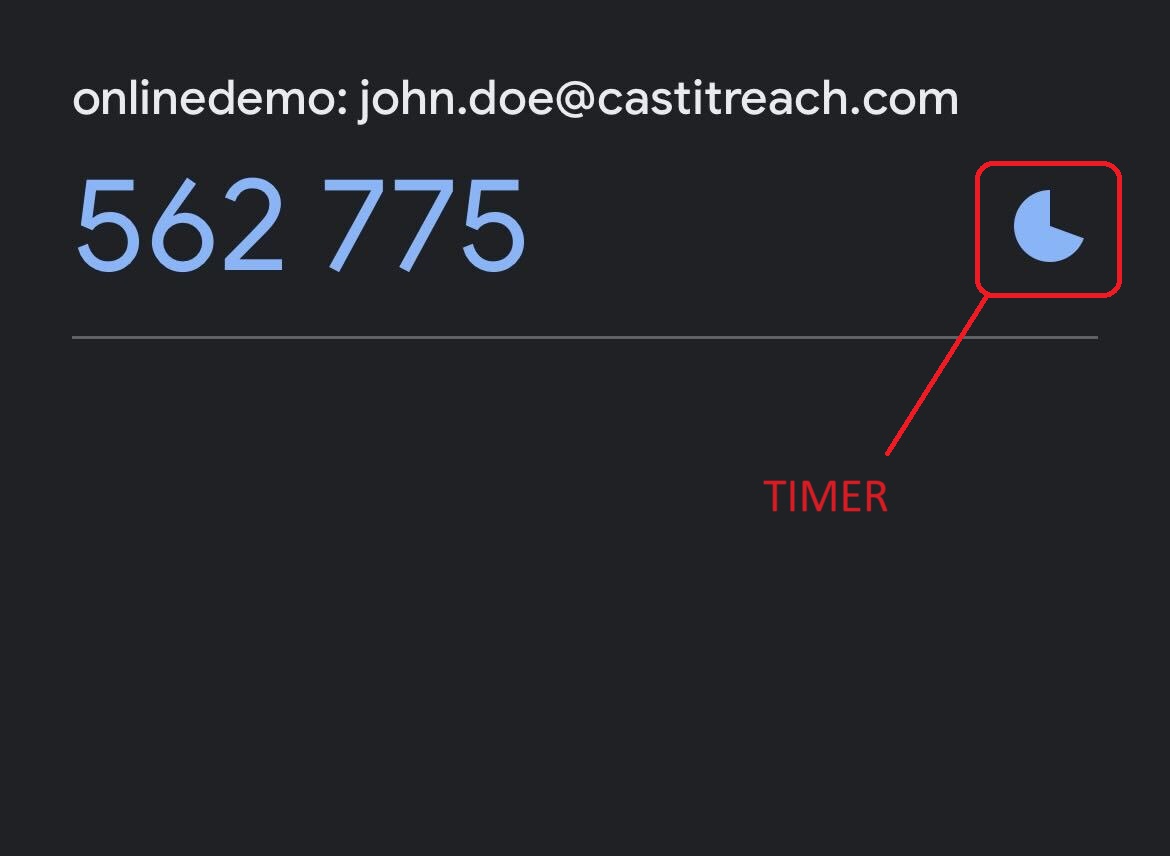
Enter the 6-digit code shown above into the box provided on your screen and click ‘Submit’. Then click Submit.
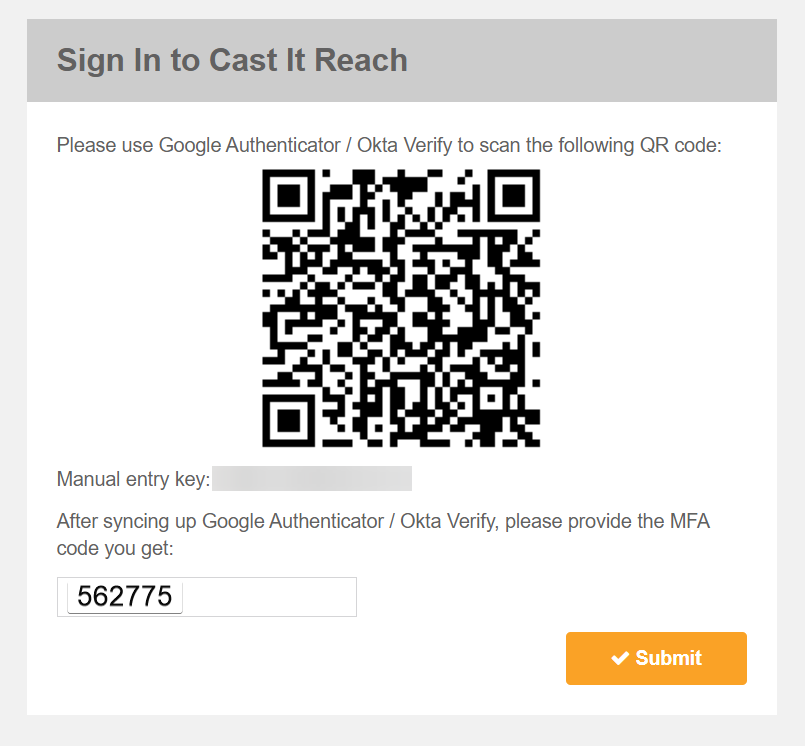
Subsequently, after entering the username and password, Users will need to enter a temporary code generated by the Google Authenticator app.
Users will need to enter a code required each time you log in to the Cast It Reach Admin
Okta Verify
Users can download the “Okta Verify” app to their mobile device from the Apple Store (iOS Devices); Google Play Store (Android).
After entering their username and password, Users will need to enter a temporary code generated by the Okta Verify app.
Users will need to enter a code required each time you log in.
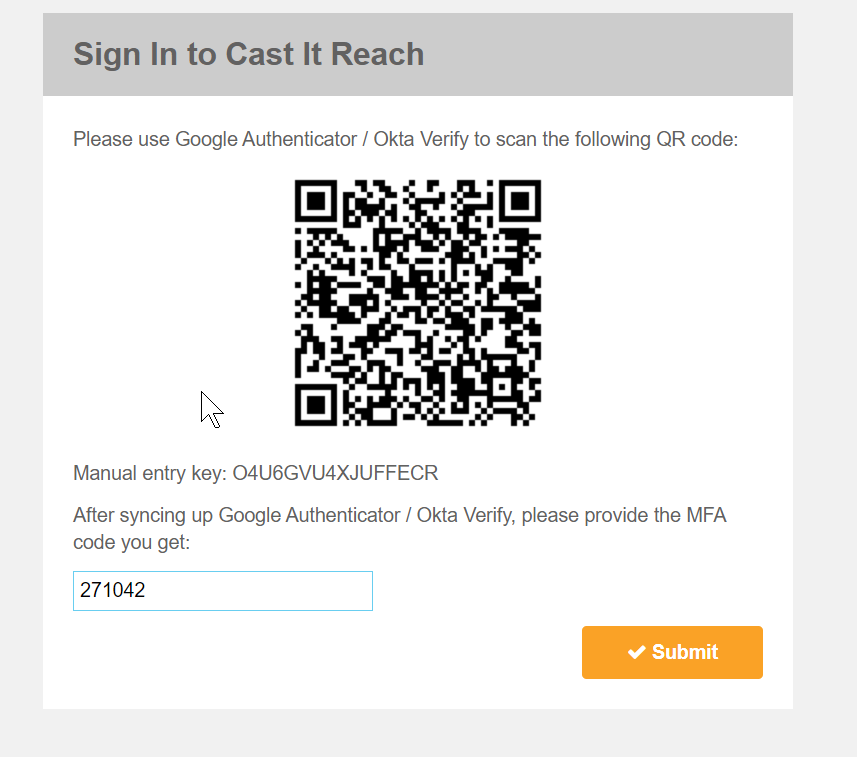
The first time a User signs in with MFA, they will need to scan a QR code using the Okta Verify app and then enter the generated code displayed.
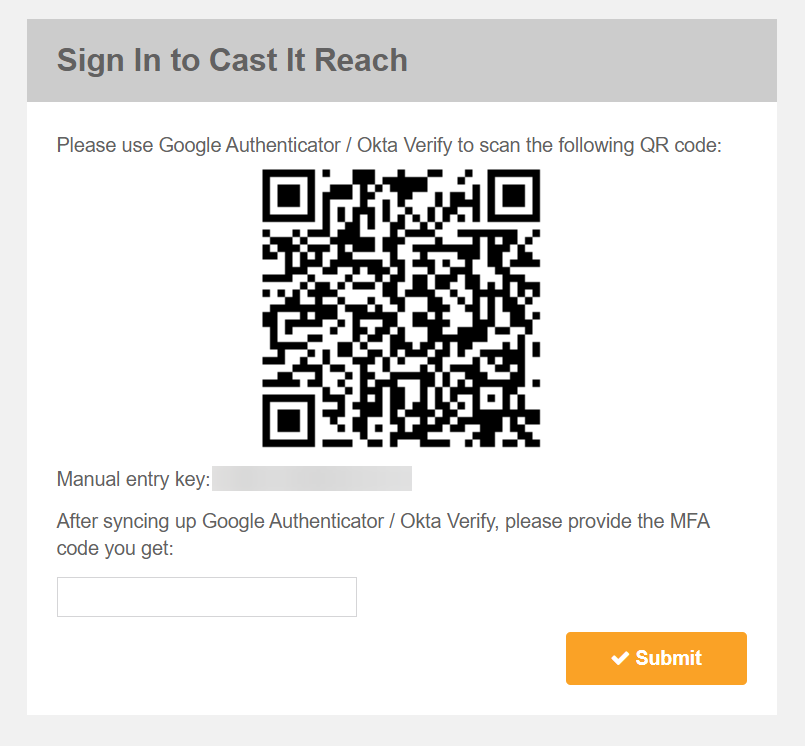
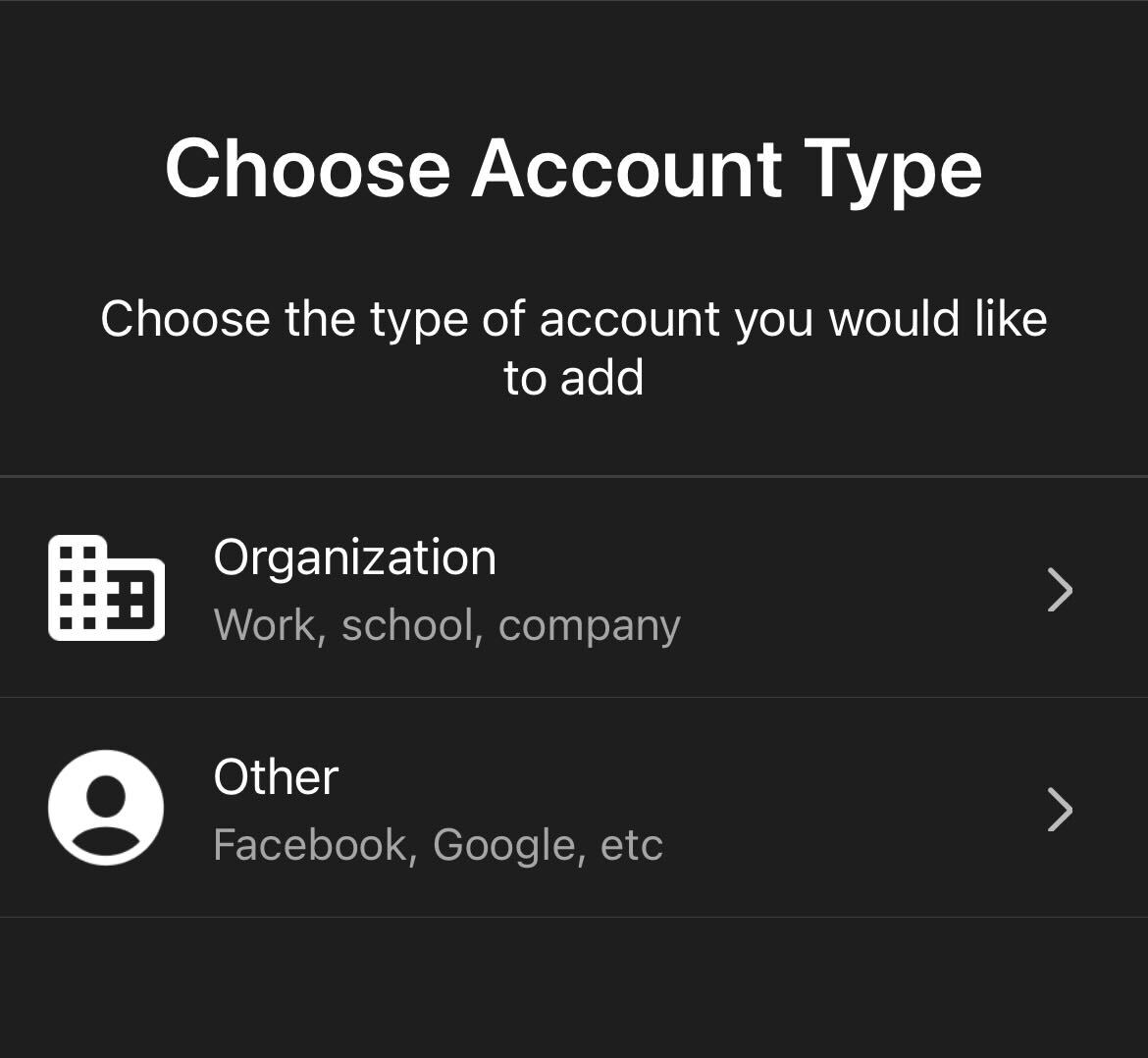
In the Okta Verify app, they will need to select the “Account Type” before selecting “Scan a QR Code” or “Enter Key Manually”.
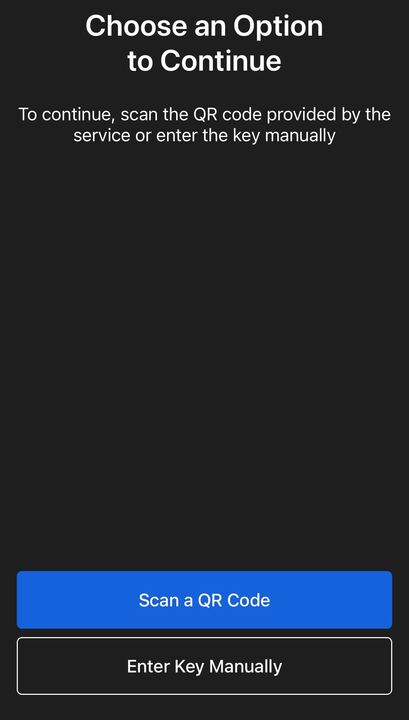
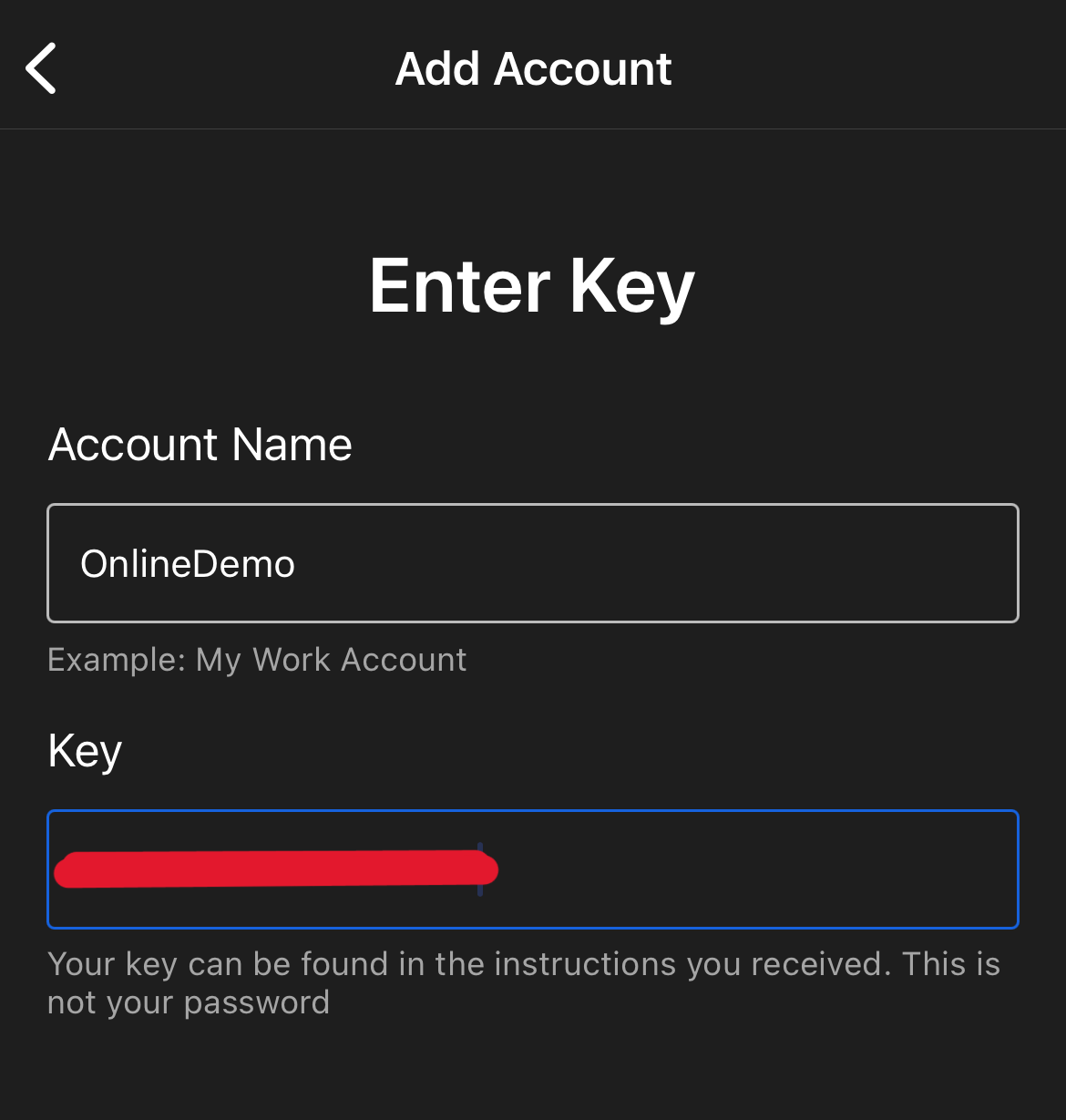
If the User is unable to scan the barcode, they can click ‘Enter Key Manually’. The user can enter their email address under ‘Account Name’ and the 16-character manual entry key within the ‘Your key’ field.
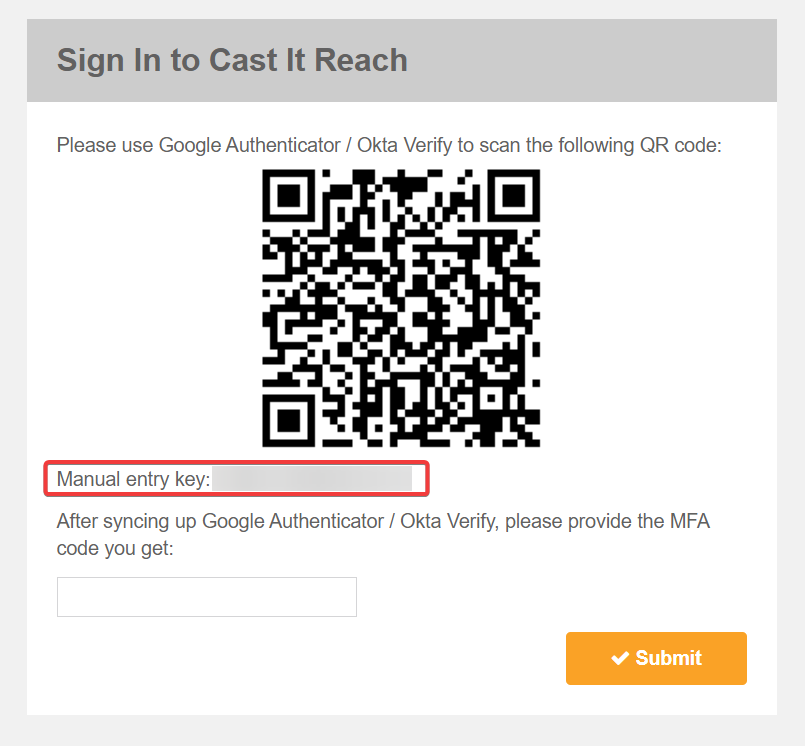
After scanning the QR code or manually entering the Entry Key, the user will see a 6-digit code displayed in the app. This code will refresh every 30 seconds.
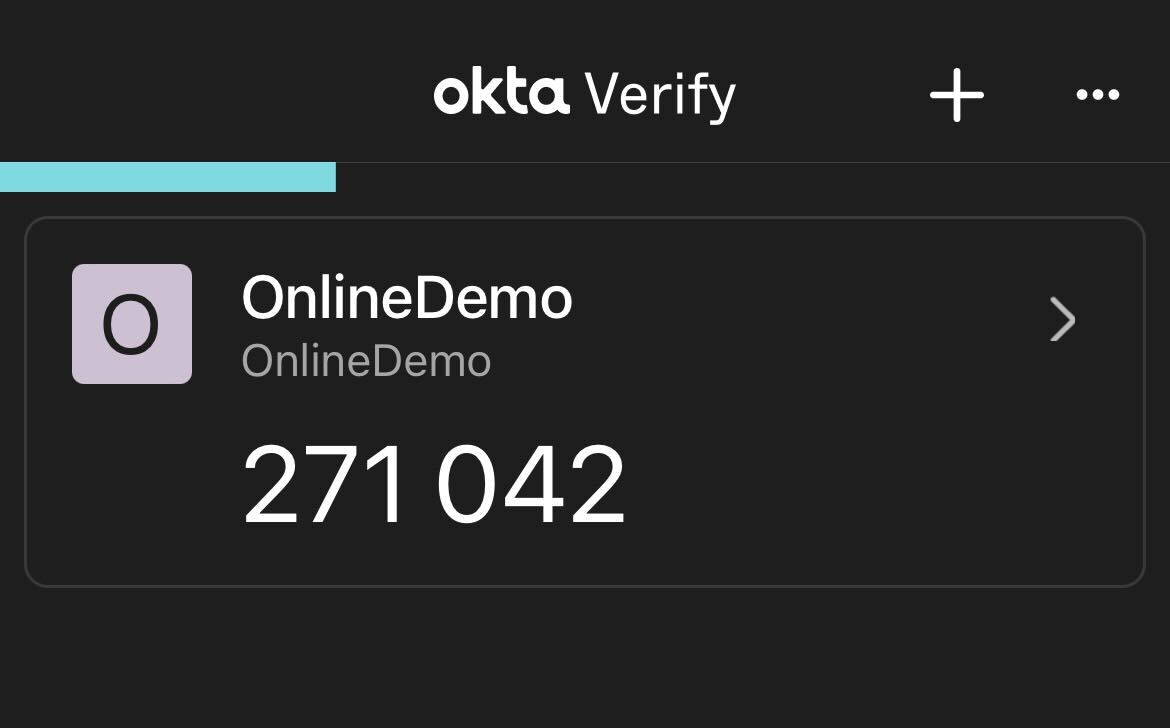
Enter the 6-digit code shown above into the box provided on your screen and click ‘Submit’. Then click Submit.
Microsoft Authenticator
Download the “Microsoft Authenticator” app from the Apple Store (iOS Devices); Google Play Store (Android).
After entering the username and password Users will need to enter a temporary code generated by the Microsoft Authenticator app.
Users will need to enter a code required each time they log in.
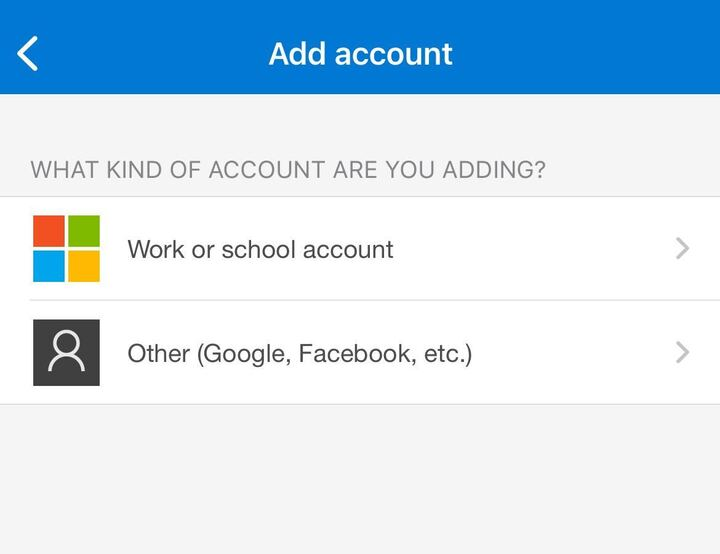
The first time a user signs in with MFA, they will need to scan a QR code using the Microsoft Authenticator app and then enter the generated code displayed.
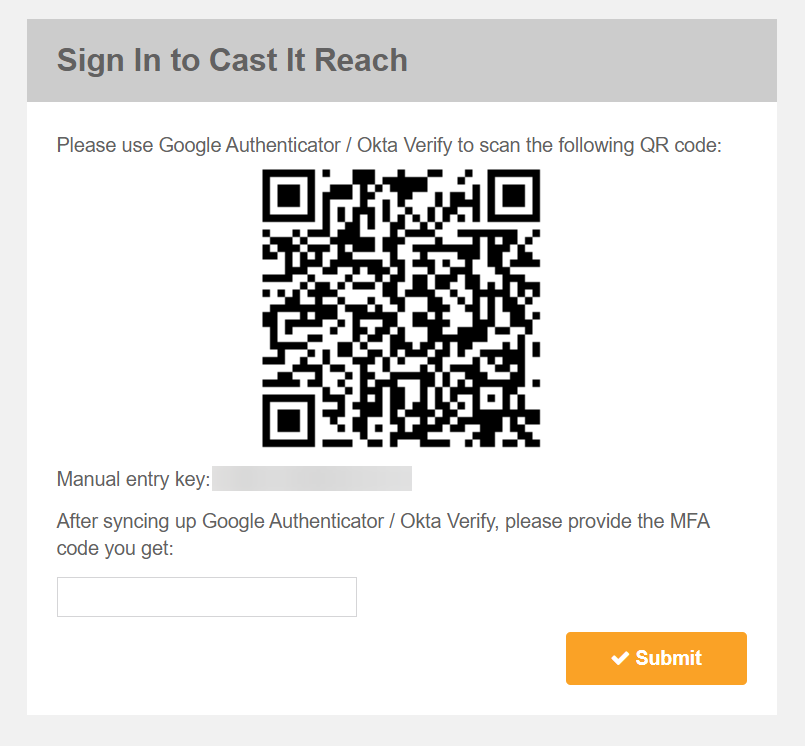
If the user is unable to scan the barcode, they can click ‘Enter Code Manually’. The user can enter their email address under ‘Account Name’ and the 16-character manual entry key within the ‘Your key’ field.
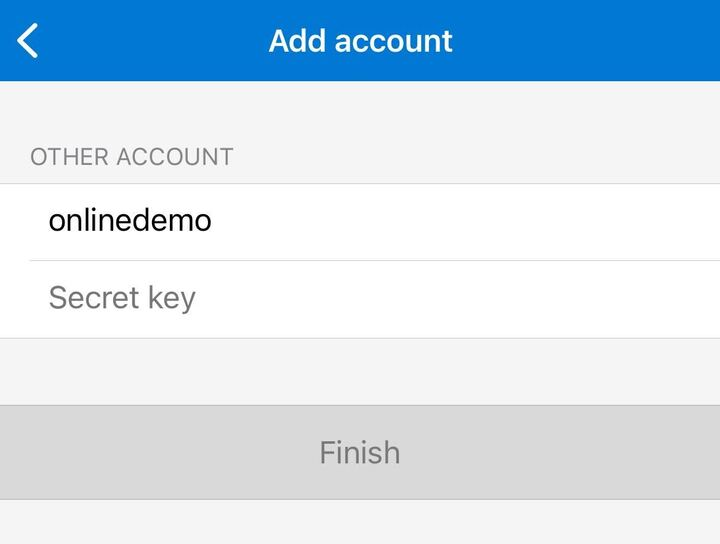
After scanning the QR code or manually entering the Entry Key, the user will see a 6-digit code displayed in the app. This code will refresh every 30 seconds.
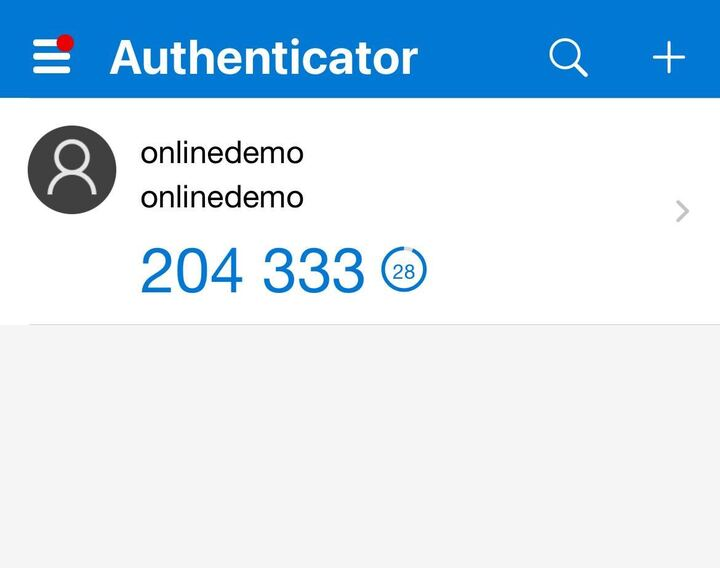
Enter the 6-digit code shown above into the box provided on your screen and click ‘Submit’. Then click Submit.